Check Out Our
Shopify Features
At AeroApps, we combine deep Shopify expertise with smart tools to help you build, manage, and grow a successful online store.

At AeroApps, we combine deep Shopify expertise with smart tools to help you build, manage, and grow a successful online store.
Step 1: Go to Shopify App Store
Step 2: Search Aero Contact Form Builder
Step 3: Install Aero Contact Form Builder in your Store
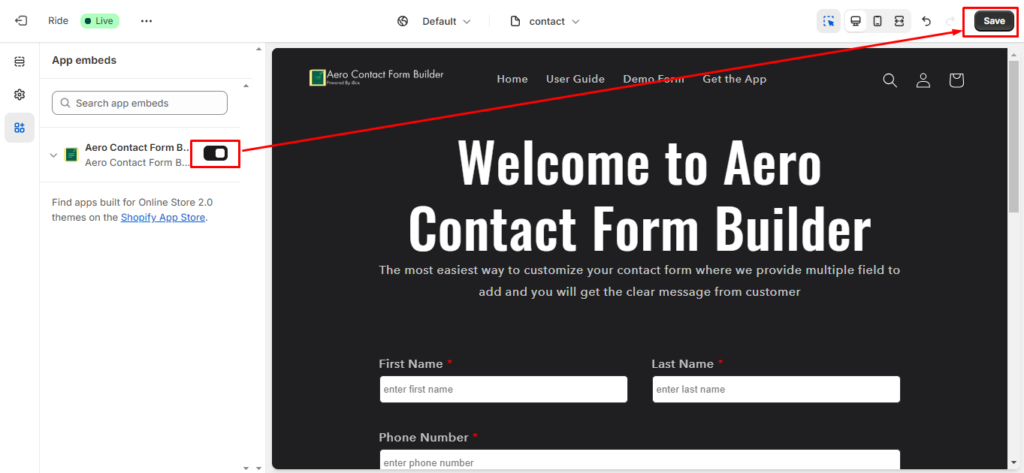
Step 4: Go to the theme customization menu and embed our app by enabling the toggle button and click on save button to install the app on the theme.
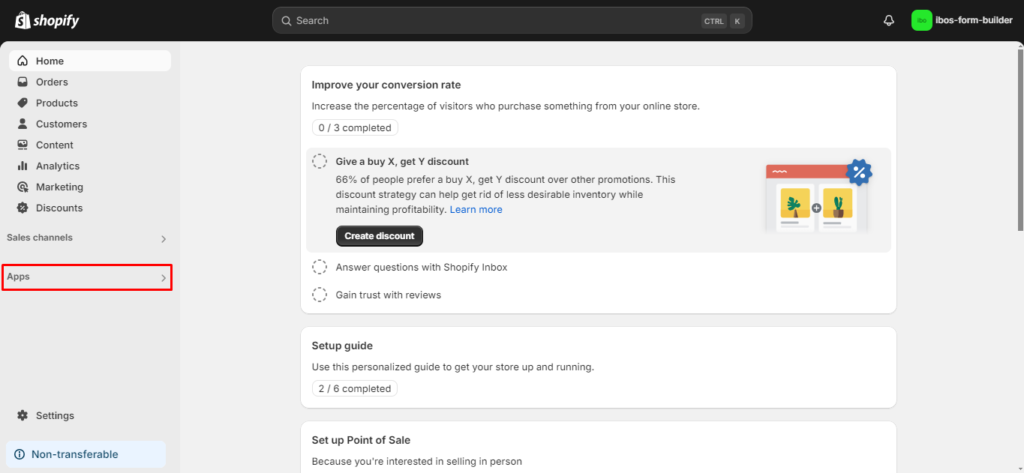
Step 5: Go to your Store and Select Apps Option
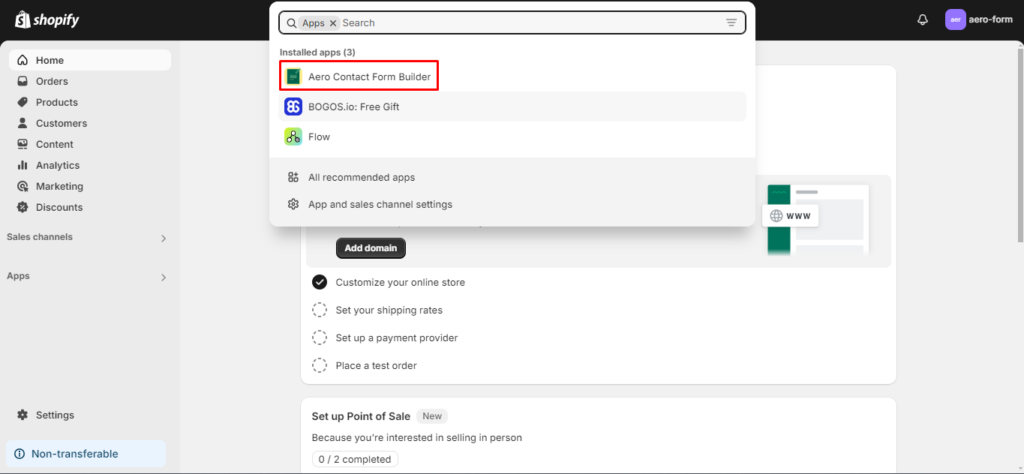
Step 6: Select Aero Contact Form Builder
Step 7: To create new form go to Dashboard and select New Form
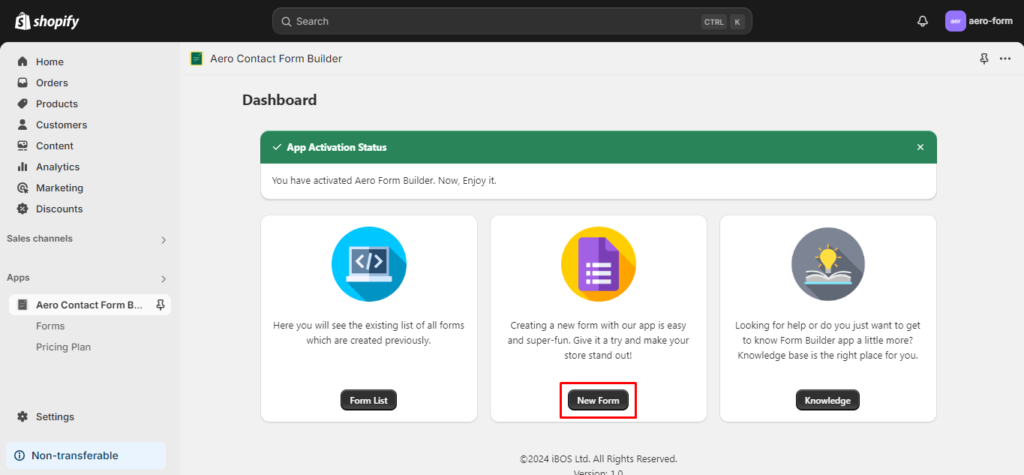
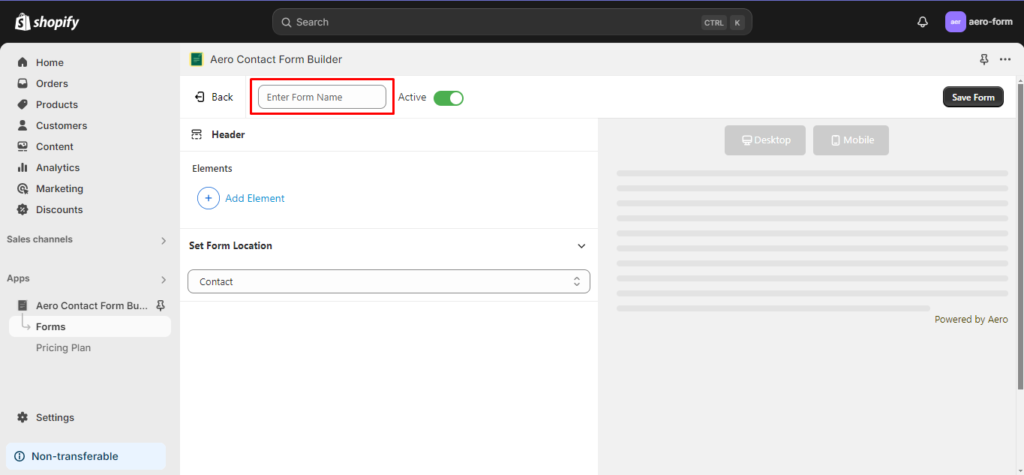
Step 8: To create new form you have to enter form name this is required field
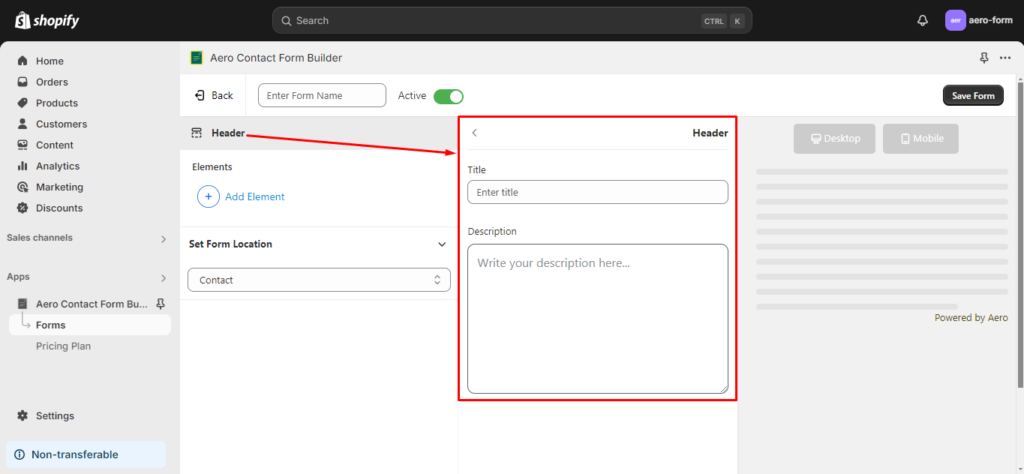
Step 9: To add Header on your form select Header
Step 10: To add element to your form select add element
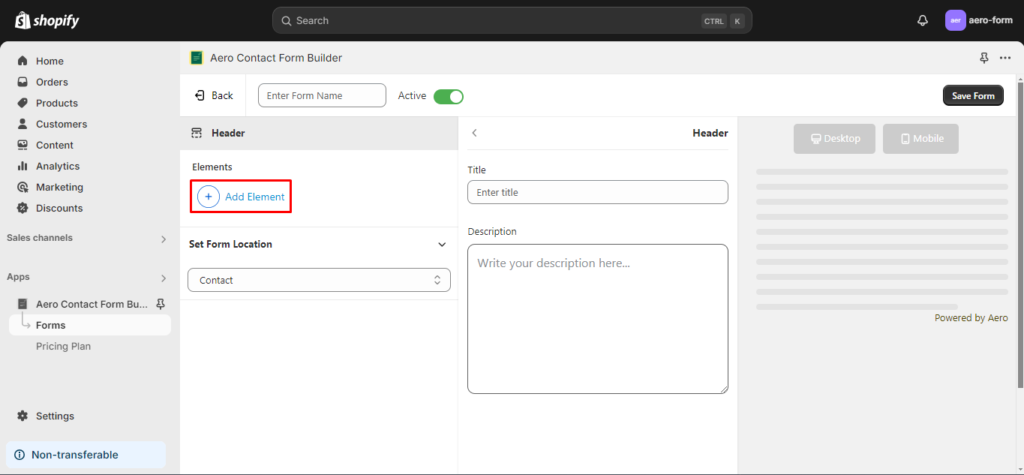
Step 11: User can add options as user’s requirements
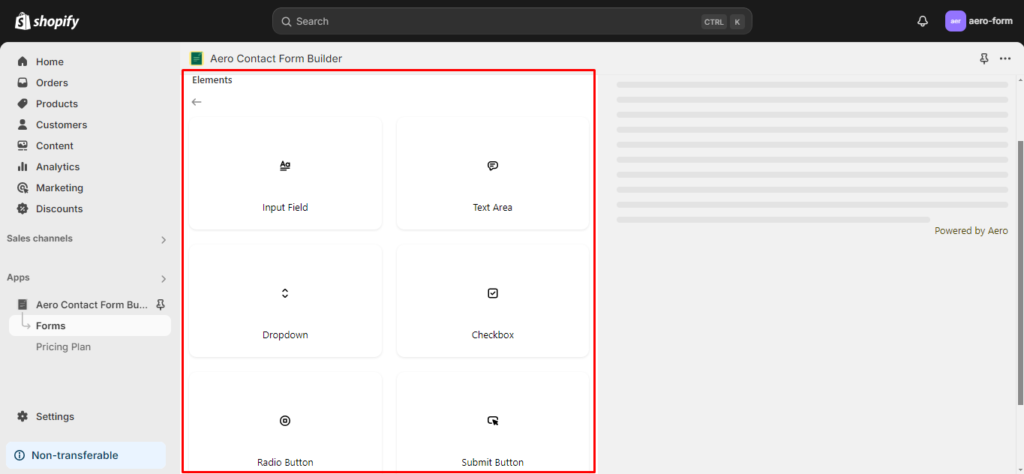
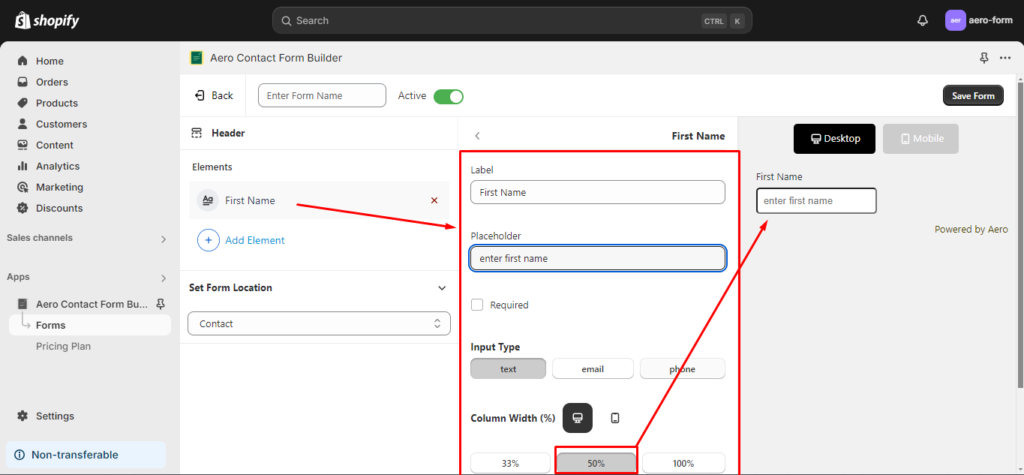
Step 12: Users can edit elements to customize fields. For Input Field you can customize field size and also there is a preview window to observe.
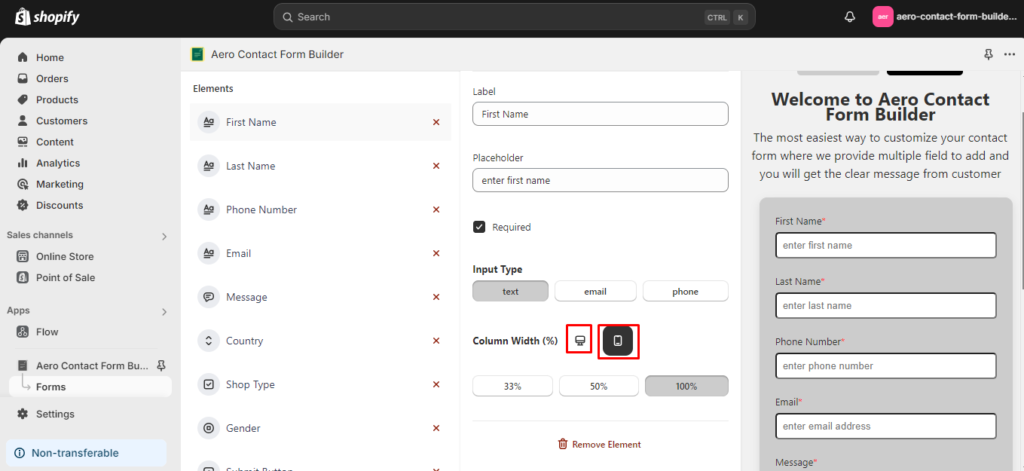
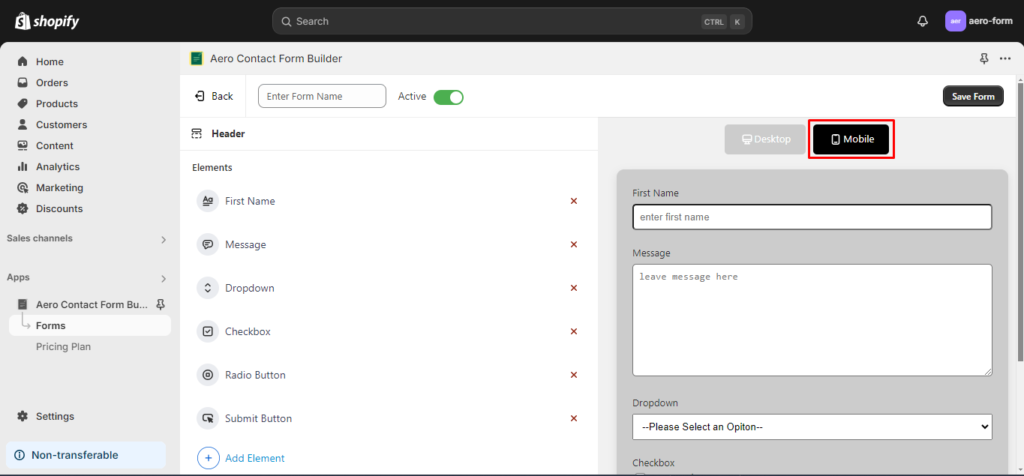
Step 13: You can customize the desktop view as well as mobile view by clicking on desktop and mobile icon.
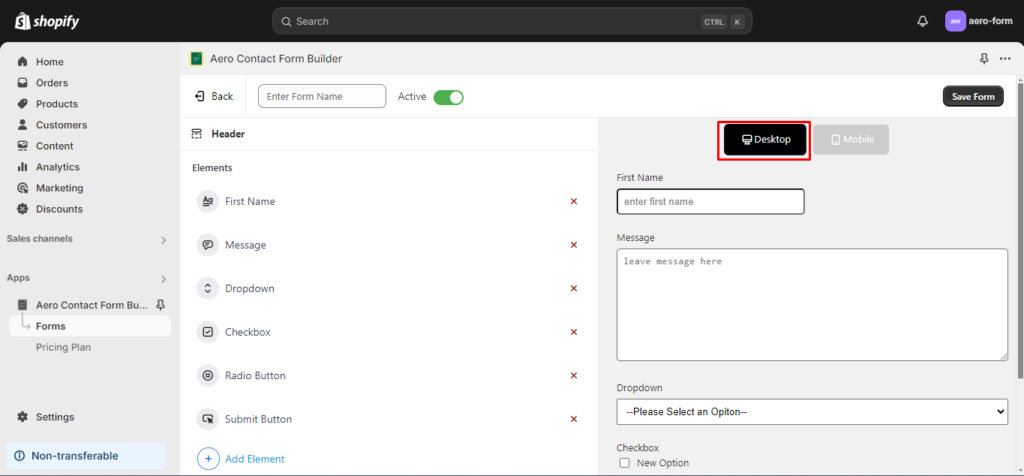
Step 14: There is a preview option for Desktop and Mobile
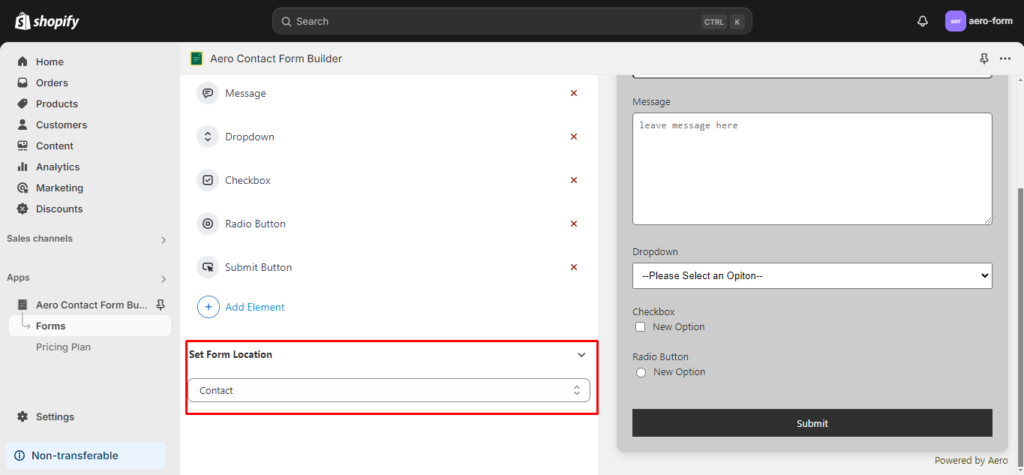
Step 15: Select location for store your form from set form location dropdown
Step 16: After adding all elements then can save your form by clicking on save form button
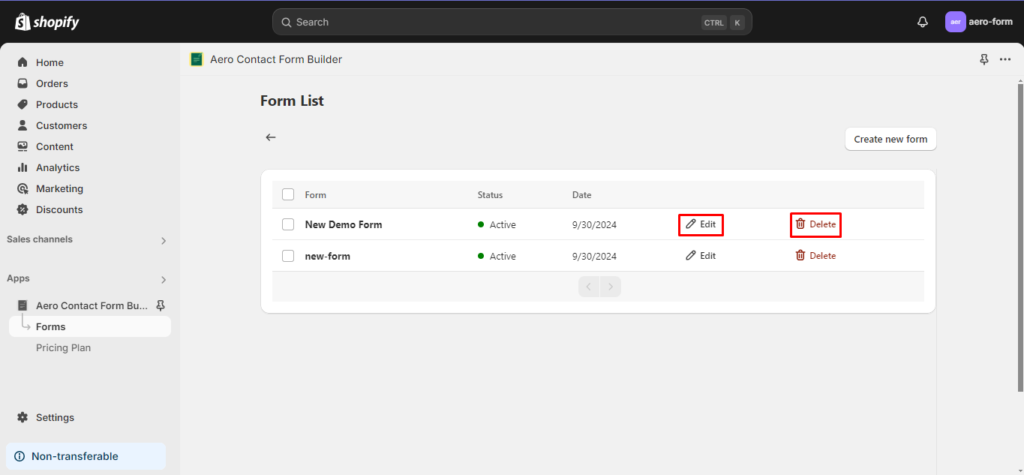
Step 17: You can see your form list by clicking on form button
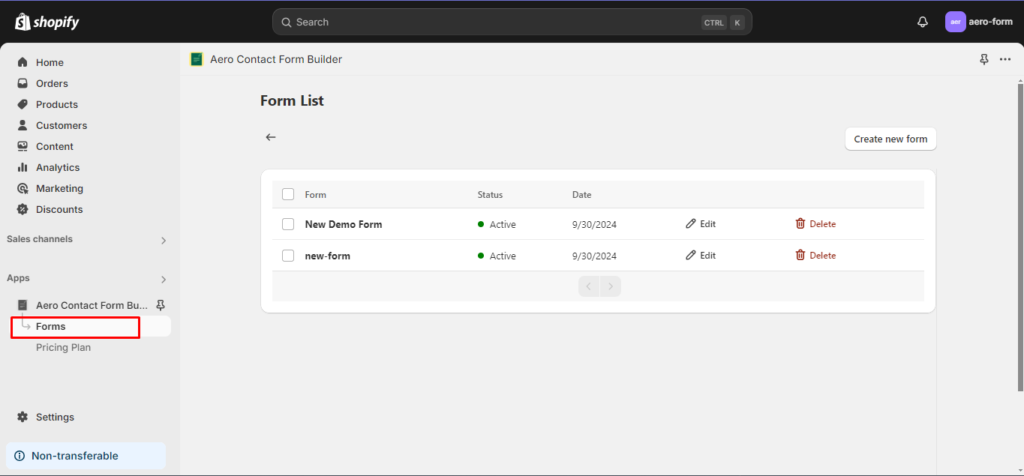
Step 18: You can also delete and edit form from your form list table
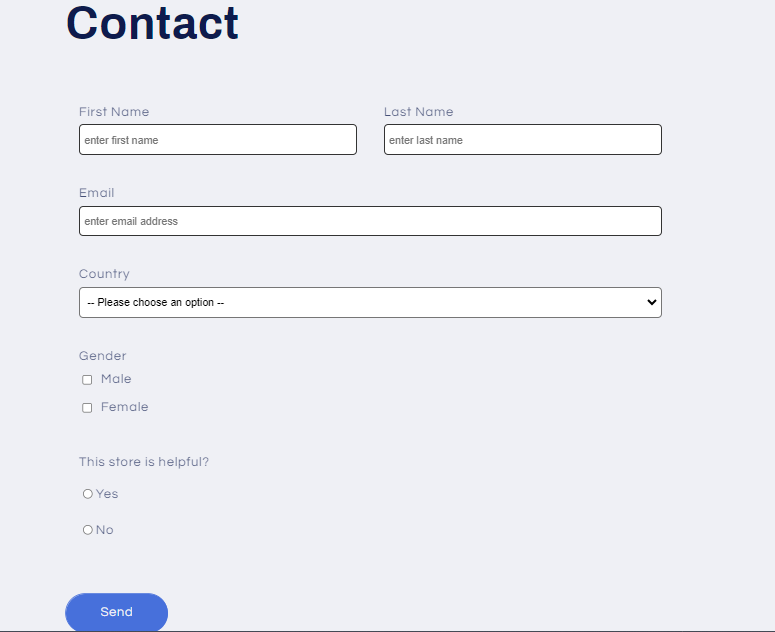
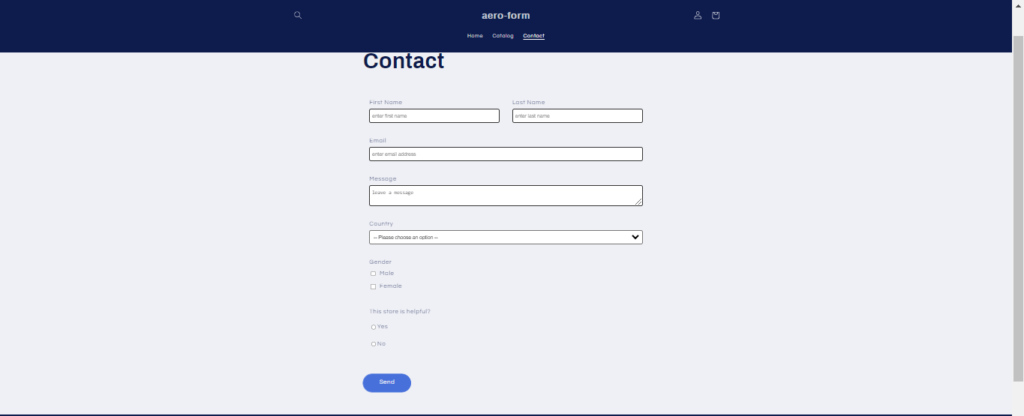
Step 19: Finally your form will look like this in your store