
How to Add Unlimited Product Options in Shopify Without Coding (Step-by-Step)
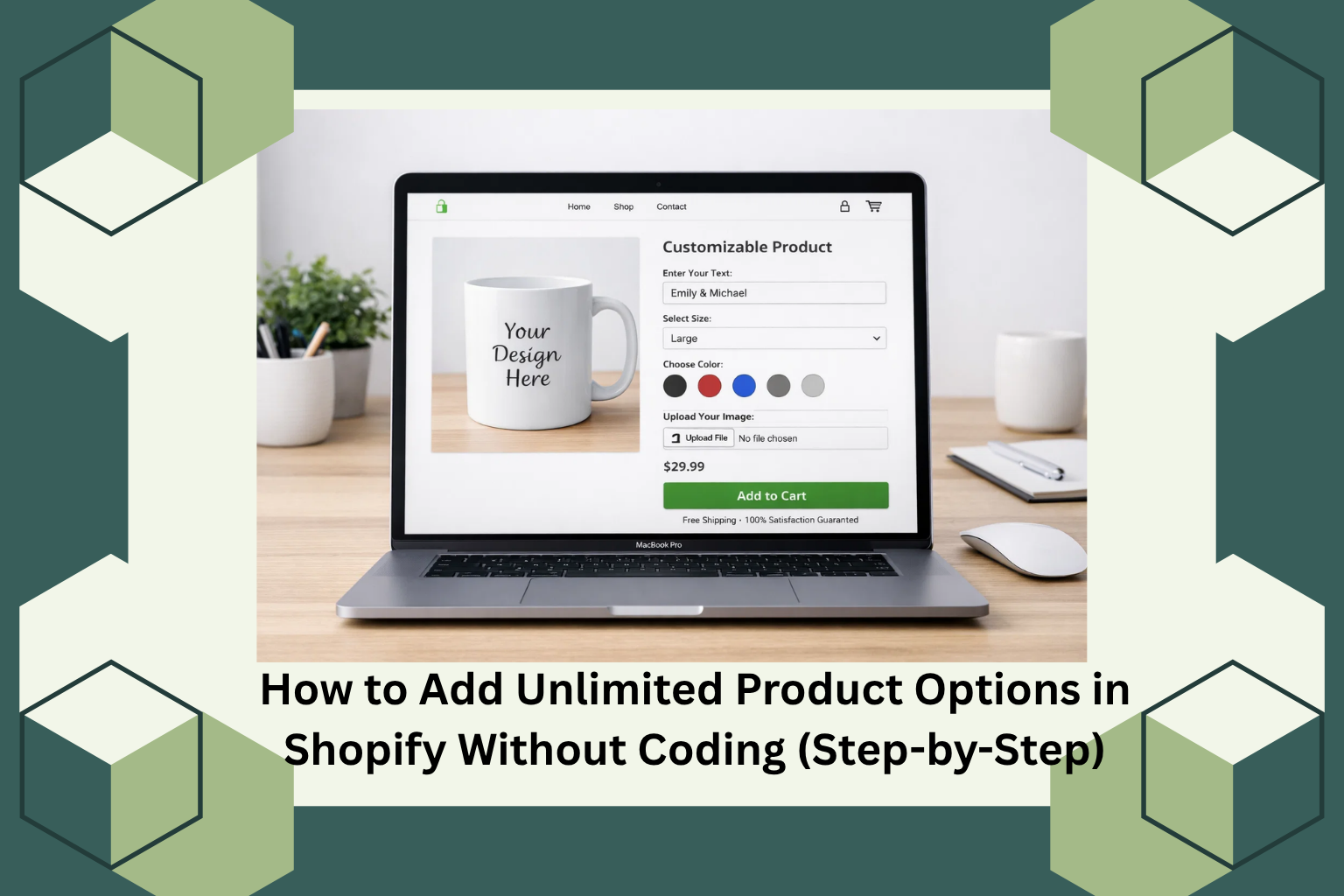
If you have ever tried to sell a customizable product on Shopify, you probably felt the limitation almost immediately.
Three options. One hundred variants. That is it.
At first, it seems manageable. Then you try to sell something slightly more advanced, maybe a personalized necklace, a custom gift box, or even a product with add-ons, and suddenly the system starts working against you instead of helping you.
I have seen this happen again and again. Store owners either simplify their products just to fit Shopify’s limits or create messy workarounds that confuse customers. Neither option is good for sales.
The good news is this problem is completely solvable, and you do not need to touch a single line of code to fix it.
Let’s walk through it properly.
Why Shopify Feels Limiting (And Why That’s Not a Mistake)
Shopify was built to be fast, stable, and beginner-friendly. That is why it limits product options and variants.
From a technical perspective, it makes sense. Fewer variants mean faster load times and simpler inventory management.
But ecommerce has changed.
Customers now expect to personalize what they buy. They want to choose colors visually, add names, upload files, or build their own bundles. When your store cannot offer that flexibility, it creates friction.
And friction quietly kills conversions.
So the real issue is not Shopify itself. It is that the default system is not designed for modern customization-heavy stores.
What ‘Unlimited Product Options’ Really Means in Practice
This is where many people get confused.
You are not actually removing Shopify’s variant limit. You are working around it in a smarter way.
Instead of creating hundreds of variants, you add custom input fields directly to the product page.
Think about it like this.
Instead of making 50 different variants for every possible combination, you simply ask the customer what they want.
They type it, select it, or upload it.
This approach is cleaner, faster, and far more flexible.
The Smart Way to Do It Without Coding
The easiest way to unlock this flexibility is by using a product options app.
From my own testing, the difference between stores that use these tools and those that do not is night and day. The product page stops being static and starts feeling interactive.
One solution that does this particularly well is Aero Product Variant Options. It is designed specifically to remove Shopify’s limitations and replace them with a flexible, no-code system.
What I like about this approach is that it does not try to complicate things. You are not editing code or breaking your theme. You are simply building options visually.
Step-by-Step: How to Add Unlimited Product Options
Step 1: Install the App
Start by installing a product options app from the Shopify App Store.
This step is straightforward. Within a couple of minutes, you will have access to a completely new way of building product pages.
Step 2: Think Like a Customer Before You Build Anything
This is where most people rush, and it is a mistake.
Before adding options, ask yourself one simple question.
What decisions does my customer need to make before buying?
For example, if you sell a custom bracelet, your customer might need to:
- Enter a name
- Choose a font
- Select a size
- Decide if it is a gift
When you think this way, you are not just adding options. You are designing an experience.
Step 3: Build Your First Option Set
Inside the app, you will create what is usually called an option set.
This is just a group of fields that will appear on your product page.
You can add things like text inputs, dropdowns, checkboxes, and even file uploads.
The important part is that you are no longer limited. If your product needs ten inputs, you add ten. If it needs twenty, you add twenty.
Step 4: Make It Feel Clean, Not Complicated
Here is where good stores separate themselves from average ones.
Just because you can add unlimited options does not mean you should show everything at once.
This is where conditional logic becomes powerful.
You can show certain fields only when they are relevant. For example, a gift message box appears only if the customer selects gift wrapping.
This keeps the page simple while still offering flexibility.
Step 5: Use Visual Choices Wherever Possible
People do not like reading long dropdown lists.
They prefer to see what they are choosing.
So instead of listing colors as text, show them as swatches. Instead of listing styles, show images.
This small shift makes a huge difference in how people interact with your product page.
Step 6: Attach the Options to Your Product
Once your setup is ready, you simply assign it to the product.
At this point, your product page transforms from a basic listing into something interactive and tailored.
Step 7: Test It Like a Real Customer
Do not skip this step.
Open your product page and go through the process as if you are buying your own product.
Try different combinations. Use your phone. Click everything.
You will quickly spot anything that feels confusing or unnecessary.
What Changes After You Do This
This is the part most guides do not talk about enough.
Adding product options is not just a feature upgrade. It changes how people perceive your store.
Instead of buying something generic, customers feel like they are creating something personal.
That emotional shift matters.
In stores I have worked on, this usually leads to:
- Higher conversion rates
- Increased average order value
- Better customer satisfaction
Not because of tricks or hacks, but because the buying experience improves.
Where Most Store Owners Go Wrong
Even with the right tools, a few common mistakes can hold you back.
The biggest one is overcomplicating the page. Too many visible options at once can overwhelm people. Simplicity still wins.
Another issue is ignoring mobile users. If your product page feels cluttered on a phone, you are losing a large portion of your traffic.
And finally, many people forget to guide the customer. A good product page feels like a conversation, not a form.
Final Thoughts
Shopify’s limitations are real, but they are not a dead end.
Once you understand how to work around them properly, you unlock a completely different level of flexibility.
You stop thinking in terms of variants and start thinking in terms of experience.
And that is what actually drives sales.
Final Step: How AeroApps Helps You Grow Your Store
If you want to implement everything we discussed without piecing together multiple tools, this is where AeroApps becomes useful.
It is not just a single feature. It is a system designed to simplify how your store works.
With Aero Product Variant Options, you can add unlimited customization fields without touching code. The drag-and-drop builder makes it easy to build and adjust your product pages quickly.
But it does not stop there.
You can increase order value using upsells and bundles, run promotions like volume discounts, and even collect customer input through custom forms, all within the same ecosystem.
What this really means is you spend less time managing tools and more time improving your store.
If your goal is to grow a Shopify business that feels modern, flexible, and conversion-focused, this kind of setup gives you a strong foundation.

Leave a Reply